Notes not syncing to Google Tasks? Check these 5 things
I’ll show you how to check a missing Google Tasks note without risking the copy still on your phone.
Iris TennantReviewer · published Nov 7, 2026 · 6 min read
01The shopping list is in Notes—but where is it in Google Tasks?
I was adding the last few things to a shopping list while the children were getting their shoes on. The list was there in Notes, but I couldn’t find it when I opened Google Tasks. That is the moment to stop tapping sync repeatedly. First, I want to know which copy I have, and where I expect the other one to appear.
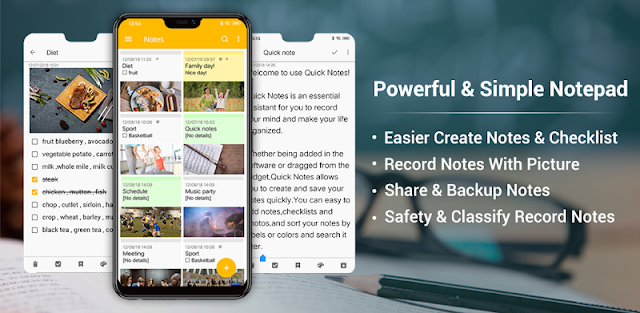
Notes by Mobile_V5 can sync notes to Google Tasks, but a note visible in one place is not proof that its latest changes have reached the other. I treat the copy I can see in Notes as the one to protect. I also check whether I’m looking at a regular note or a checklist, because those are easy to confuse when I’m hunting for a short shopping list.
The likely causes, in the order I check them, are a different Google account, a connection that has stalled, a sync setting that needs attention, or a note I’m overlooking in a folder or task list. App restrictions on background activity can also delay a sync. That order matters: the first checks are quick, and none require deleting anything.
02First, find the copy you can still read
Before changing a setting, I open Notes and search its folders for a distinctive word from the missing note. If it is a checklist, I look for the checklist view as well as the note title. I open the item and read the latest line I remember adding. This tells me whether the problem is the note itself or only its appearance in Google Tasks.
Next I open Google Tasks and check the account shown there. I look through its task lists rather than assuming the item belongs in the list currently on screen. If I use a laptop to view the same Google account, I check the account there too; a familiar profile picture is not enough when several accounts use similar names.
If the note is visible in Notes but nowhere in the expected Google Tasks account, I leave it untouched while I check the connection. If I find an older copy in Tasks, I resist editing both versions. I keep the newer text in view so I can compare the copies before deciding which one needs attention.
03Check the connection before changing sync settings
A connection can look fine because a page already loaded, while new changes are waiting. I switch between mobile data and the home Wi-Fi router, then reopen Google Tasks and Notes. In a smart home with several connected devices, I don’t assume my phone has a working connection just because another screen or speaker responds.
These are my quick checks, from least disruptive to most disruptive. I stop as soon as the missing item appears, then compare its contents with the copy in Notes before making another edit.
Confirm that Notes still shows the latest text.
Open Google Tasks and check the intended Google account and task list.
Try another working connection, then reopen both apps.
Check the sync option in Notes and the selected Google account.
If nothing changes, restart the phone and check both apps again.
I do not use repeated edits as a connection test. Adding and removing words can make it harder to tell which copy is newest. A single harmless change is enough later, once I know where the note lives and that the account and connection are right. First I want to rule out the ordinary reasons it has gone missing.
04Check which Google account Notes is using
If the connection is working, I look in Notes for its cloud sync or Google Tasks option and check the account it uses. Screen labels can vary, so I look for the account address rather than relying on a menu name. I compare that address with the one displayed in Google Tasks. This is the check most likely to resolve a note that seems to have landed nowhere.
I also revisit the relevant folder in Notes. Folders organize notes locally in the app, while Google Tasks has its own lists. I do not expect the two layouts to look identical. Instead, I search for the note’s title or a distinctive phrase, then check whether the text is current. Finding the item under an unexpected list is much better news than trying to recreate it.
If I have changed Google accounts recently, I check each account I actually use before reconnecting anything. I avoid removing an account just to see what happens. The aim is to identify the destination, not to force a fresh start. Once the account is clear, I can make one controlled change and see whether it travels.
05Test one small edit without risking the whole list
When I can see the original note and have checked the account, I add a short, unmistakable line to a note that is safe to change. Then I leave Notes, open Google Tasks and look in the matching account. I give the apps a chance to refresh on a working connection. I do not change the shopping list at the same time; that would give me two moving targets.
If the new line appears, I return to the important note and compare its contents in both places. I copy any missing text into the version I intend to keep, then check it again in Notes and Google Tasks. This is slower than pressing every sync control I can find, but I can see exactly what has moved.
If the test line stays only in Notes, I check the phone’s settings for Notes: background activity and battery restrictions can affect when an app works away from the screen. On my Galaxy A-series phone, I look under Settings, Apps, Notes, then Battery. I keep this check narrow; I do not change device-wide settings for one missing item.
06Protect your notes before the thorough fix
If the account, connection and background settings all look right, I protect the local copy before doing anything more disruptive. Notes offers backup or export to an SD card and can import backup files. I open the backup option and follow its on-screen steps, then confirm that the resulting file is where I expect it. A backup matters most when the note contains text I cannot easily rebuild.
Only after I have a backup would I consider ordinary app maintenance: checking the Google Play listing for an available app update, then restarting the app. I avoid clearing Notes storage or removing the app as a first fix, because those actions can put the copy on the phone at risk. I also avoid importing an older backup over notes I have just edited.
My final check is simple: I open the important note in Notes, open the intended Google Tasks account, and compare the text rather than judging by the title alone. If they still differ, I keep the backed-up copy and make the needed changes deliberately in the place I use most. That leaves me with a usable list while I sort out sync.
The takeaway
Start with the note you can still read: check its folder, then confirm the Google account and task list before touching sync settings or app storage.
For more practical help with the app, continue to this site’s Notes page just below.
Small Practical Wins is independent and not affiliated with Mobile_V5. This guide reflects the reviewer's own setup; menus can differ by device and version.

 Best picksHubspace

 TipsAmazon Fire TV

 TipsAthan

 How-toGuitarTuna

 How-toSoundcore

 How-toUNIQLO

 TipsFood City
 TipsGmail
 CompareMarineTraffic
 Best picksW.W. Grainger

 TipsStyleSeat