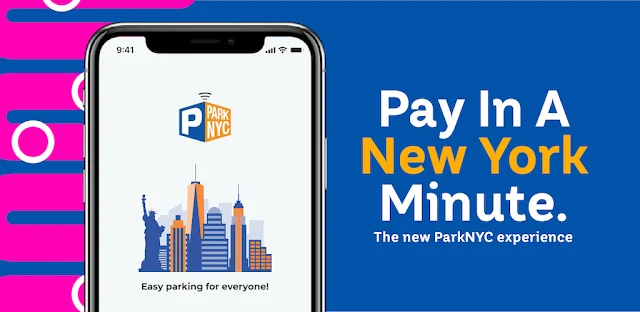
ParkNYC powered by Flowbird: Pay the Right Zone in 4 Steps
I’ll show you how to check the zone before paying in ParkNYC, so a rushed stop doesn’t turn into a payment for the wrong block.
Iris TennantReviewer · published Nov 1, 2026 · 6 min read
01The curbside check I make before opening ParkNYC
The family calendar had me heading from a school pickup to an appointment across town, with just enough room for a quick stop. I found a space, reached for my phone, then looked back at the parking sign. That pause is the heart of this guide: ParkNYC powered by Flowbird can help me find a zone and pay, but I still need to match the payment to the place where I actually parked.
I start with the signs beside the vehicle, not with the location shown on my phone. I check that parking is allowed for the time I need, then look for the zone information associated with the space. If there are several signs along the block, I read the ones that apply to my exact spot. A nearby zone is not automatically the right zone.
I also take a moment to note the vehicle I’m using. That sounds obvious until I’m juggling an appointment address, a bag on the seat and a message about pickup. The app can keep the parking task in one place, but it cannot decide which vehicle I meant to park. Once I have the sign and vehicle straight, I’m ready to enter the zone.
02Find the parking zone without trusting a nearby pin
A map is useful for getting oriented, especially when I have arrived on an unfamiliar street. For payment, though, I treat what I see at the curb as the reference. A location marker can help me find the area; it is not a substitute for checking the zone connected to my space. That distinction matters most around corners, where two nearby spots may not share the same parking rules.
Open ParkNYC powered by Flowbird and sign in if prompted.
Tap the control for finding or entering a parking zone.
Use the zone information shown for your parking space to select the matching zone.
Check the zone displayed on the payment screen against the sign before continuing.
I would stop here if the zone on the screen and the zone at the curb did not match. I would look again at the nearby signs and my position on the block rather than guessing from the map. That small interruption is easier to handle while I am still beside the vehicle. After the zone matches, the next question is which vehicle the payment will cover.
03Choose the vehicle before setting your parking time
When more than one vehicle is available in an account, the selected vehicle deserves its own check. I think of this as the second half of the zone check: the zone answers where, and the vehicle answers for whom. I read the vehicle details on the screen before moving on. If I am using a different vehicle than usual, I do not assume the app has switched to it for me.
On the parking screen, tap the vehicle selector.
Choose the vehicle you parked, or use the add-vehicle control if needed.
Read the selected vehicle details back before continuing.
Tap the parking-time control and choose the time you need.
For a trip planner entry, I might know when an appointment starts, but not exactly when I will be back at the curb. I choose parking time based on the posted rules and what I can reasonably use, not on my calendar alone. Before paying, I look at the proposed end time and the zone again. This is the last calm point to catch a mistaken selection.
04Review the payment screen before you confirm
The confirmation screen is where I slow down, even if someone is waiting for me. I want the zone, vehicle and parking time to describe the same stop. I also read the amount shown in the app before I confirm. If any detail looks unfamiliar, I go back and correct it rather than hoping the app will infer what I intended.
Tap the control to continue to payment.
Check the zone, selected vehicle, parking time and amount on the review screen.
Use Back or Edit to correct any detail that does not match your stop.
Tap the final pay or confirm control only when the details match.
Wait for the in-app confirmation before leaving the vehicle.
I do not treat a tap on Pay as proof that the parking session has started. I wait for the app to show a confirmation or active-session screen and read the details there too. If I am headed toward an airport pickup or another tightly timed errand, this is the moment I would rather spend at the curb than discover later that I left without confirming the session.
05Check your active session before walking away
Once the app shows an active session, I check its zone, vehicle and end time one more time. This is not a new search for parking; it is a check that the result matches what I meant to do. I keep the app accessible while I am away from the vehicle, because the end time is easier to act on when I can see it rather than reconstruct it from memory.
I set a reminder in my usual calendar for a little before the displayed end time. That reminder is my own backstop, not a replacement for the app or the street signs. If my plans change, I check the active session and the posted rules before deciding what to do next. I never assume that extra time can be added to every parking session.
This matters on ordinary days as much as on travel days. A hotel deals search can wait; a parking end time cannot. I put the phone away only after I know when I need to return or check again. If the session details look wrong, I address that while I am close enough to reread the sign.
06What I do when the curb and app still disagree
If I cannot make the zone in ParkNYC line up with the information at my space, I do not pay for a zone that merely looks close. I reread the sign, check whether I am on the other side of an intersection or at the edge of a different parking area, and return to the zone selection screen. The aim is a match I can explain, not a fast guess.
I take the same approach if the vehicle or time on the review screen is wrong: go back, change the field, then review the whole payment again. Changing one detail can make me overlook another. The security and performance work described in the app’s recent update is welcome, but it does not replace this curbside check. The app handles the transaction; I supply the correct parking details.
A loyalty program may make some travel tasks feel automatic, but street parking asks for fresh attention at each stop. My practical order is sign, zone, vehicle, time, confirmation. It is short enough to remember when I am late, and specific enough to catch the mistakes I would otherwise make while thinking about where I need to be next.
The takeaway
First, read the sign at your exact space and match its zone in ParkNYC before choosing a vehicle or parking time.
Continue to this site’s ParkNYC powered by page just below for more practical app guidance.
Small Practical Wins is independent and not affiliated with NYCDOT ITT. This guide reflects the reviewer's own setup; menus can differ by device and version.
 Best picksHubspace
 TipsAmazon Fire TV
 TipsAthan
 CompareMarineTraffic
 CompareAirbnb

 CompareSaily

 CompareInstant Voice Translate

 How-toUNIQLO
 TipsFood City
 TroubleshootingNotes
 TipsGmail