Weather Kitty: 6 ways to spot rain before you leave
I use the hourly forecast, rain projection and radar to decide what belongs by the door before the family heads out.
Iris TennantReviewer · published Nov 2, 2026 · 6 min read
01Check the next 24 hours before choosing coats
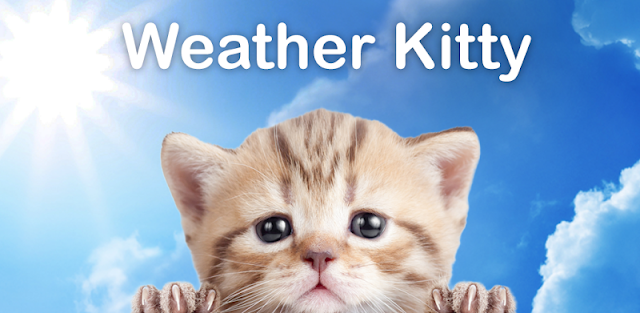
The school bags were by the door when I saw sunshine behind the kitten. I nearly left the raincoats hanging up. Weather Kitty’s current conditions tell me what is happening outside; its hourly forecast is where I look before deciding what everyone needs for the trip home.
Open the hourly panel and use its 24-hour view button to look beyond the next few hours. I scan the hours when we will actually be outside, rather than treating the weather at breakfast as the day’s answer. That distinction matters most when a dry morning could turn into a wet pickup.
I keep my eye on the hour of the next outdoor handoff: leaving school, walking to an activity or heading back from the shops. If rain appears there, I put a light layer in a bag even when it feels unnecessary at the door. Then I check how much rain is projected.
02Use projected rain to decide what goes in the bag
A rain symbol on its own can make me pack for the wrong problem. In Weather Kitty, I look at the projected rain or precipitation alongside the hourly forecast. The useful question is not just whether rain appears, but which part of our outing it might affect.
I compare the forecast hours with the time we will be walking, waiting or loading bags into the car. Rain during a short drive changes little; rain while I am waiting outside changes what I carry. This is also where a moving checklist helps: I can add a rain cover before boxes go out to the vehicle.
Forecasts can shift, so I treat that projection as a packing cue rather than a promise. If the timing sits close to our departure, I put umbrellas somewhere visible and check again before leaving. For a closer look at where the rain is moving, I turn to the radar.
03Open animated radar when the sky and forecast disagree
Sometimes the forecast looks dry while the clouds outside say otherwise. That is when I open Weather Kitty’s Live Animated Radar. I use the movement on the map to get context for the hourly forecast: is nearby rain passing through, or does it appear to be heading towards us?
I look at our location first, then watch the animation rather than judging a single frame. A patch of rain nearby is less useful to me than its direction of travel. If it appears to be moving across the route to school or the park, I plan for wet ground even if the current kitten looks cheerful.
Radar is a second check, not a substitute for looking outside. It pays off when I have a little flexibility: leave for the walk now, bring a raincoat, or switch to an indoor errand. For severe conditions, I rely on dedicated weather alerts rather than a cute forecast screen.
04Compare “feels like” with the high before picking a layer
A mild-looking high can fool me on a windy morning. Weather Kitty includes today’s high and low, feels-like temperature and wind speed, so I check those together instead of choosing clothes from the biggest temperature number on the screen.
I start with the current conditions panel for the moment we are leaving, then use the hourly forecast for later. If the feels-like temperature is noticeably cooler than the high, I choose a layer that is easy to take off. Wind speed matters when we will be standing still at a pickup point rather than walking briskly.
This is also useful before car maintenance outdoors. A task that sounds comfortable at the day’s high may feel different in the early morning wind. I pick a calmer hour if the schedule allows, then check the rain projection before leaving tools out. Next, I make sure the forecast is for the right place.
05Check the location before trusting the hourly timing
The forecast can be perfectly readable and still answer the wrong question if I am looking at the wrong location. Weather Kitty offers local forecasts for places around the world and a GPS option that can locate the city I am in. I check the location shown before planning around its hourly rain times.
If I am at home, I use the local forecast for our usual routine. If I am travelling, I use the GPS option or look up the destination rather than carrying over my home forecast. I check the place name again after switching, especially when the destination is a short drive away but the weather may differ.
For an afternoon outing, I want the forecast for where we will be at pickup, not just where I am making the plan. That habit takes little effort and prevents a misleading comparison between the sky outside and the hourly panel. It matters just as much when I put the forecast on the home screen.
06Treat the widget as a glance, then open the forecast
A home-screen widget is useful when my hands are full and I want a quick look before everyone reaches the door. Weather Kitty’s recent changes include a fix for a widget crash while images load. If I use the widget, I treat it as a starting point, not the final word on what to pack.
I tap through to the app when the day depends on timing. There I can check the current conditions, open the hourly panel’s 24-hour view and compare it with projected rain. The widget gets my attention; the forecast screens help me decide whether the umbrella stays by the door or goes into a bag.
I also check the current conditions panel when something looks off, rather than relying on an earlier glance. A recent fix addressed incorrect information on that panel, but conditions can change during a busy morning. My last look before leaving is at the hours we will be outside, with radar as a tie-breaker.
The takeaway
First, open Weather Kitty’s hourly panel and use the 24-hour view to find the hours you will be outside. Check projected rain for those hours, then use radar if the sky makes you doubtful.
Keep reading on this site’s Weather Kitty page just below for more practical details about the app.
Small Practical Wins is independent and not affiliated with Weather Creative Inc.. This guide reflects the reviewer's own setup; menus can differ by device and version.

 Best picksHubspace

 TipsAmazon Fire TV

 TipsAthan

 How-toUNIQLO

 TipsFood City
 TroubleshootingNotes

 TipsGmail

 CompareMarineTraffic
 Best picksW.W. Grainger

 TipsStyleSeat

 CompareAirbnb