Gmail: Find the Missing Email With These 6 Search Moves
I’ll show you how to narrow Gmail by sender, subject and attachment, so the next missing message doesn’t hold up your day.
Iris TennantReviewer · published Oct 25, 2026 · 6 min read
011. Start with the detail you actually remember
At the kitchen counter, with a school bag open and a permission slip waiting, I want the email with the meeting location—not every message from school. That is the kind of search I build around one reliable detail. Gmail’s search operators let me tell the app whether a word belongs in the sender, subject or message, instead of hoping a broad search puts the right result first.
I start in the correct account: tap the profile picture at the top right and choose the address that received the message. This matters when personal mail and business email live in the same app. Then I use the search bar rather than scrolling through Inbox. Search can find archived mail too; a message does not have to remain in Inbox to turn up.
Tap Search in mail at the top of Gmail.
Type a distinctive word you remember, such as permission.
Tap the Search key on your keyboard.
Tap a matching conversation to read it.
Tap the back arrow to return to the results.
022. Use from: when the sender is the strongest clue
A sender is often a better starting point than a topic. If I know the address, I search from:alex@example.com rather than Alex alone. The operator targets the sender field, while an ordinary name could appear inside someone else’s message. Replace that example address with the real one, keeping the colon snug against the address. There is no space after from:.
Tap Search in mail, or tap the existing query at the top of your results.
Replace the query with from:alex@example.com, using your sender’s address.
Tap the keyboard’s Search key.
To narrow the results, tap the query and add a space followed by permission.
Tap the keyboard’s Search key again.
The combined query from:alex@example.com permission asks for mail from that address that also contains permission. I use the same pattern for invoicing correspondence: a known sender plus a distinctive reference word is more useful than searching invoice across an entire account. If the result is empty, I remove the extra word first. A remembered topic can be slightly wrong even when the sender is right.
When I remember the email’s heading, I use subject: rather than treating it as ordinary message text. The query subject:permission looks for that word in the subject. For a remembered phrase, subject:"trip meeting" keeps the words together. Straight quotation marks are useful here: they turn a loose collection of words into a phrase search, which is helpful when each word is common on its own.
For project management correspondence, I might combine from:alex@example.com subject:"launch checklist". That is two requirements, not two alternative guesses: the sender must match and the subject must contain the phrase. I build this in stages so I can see which addition narrows too far. If I only vaguely remember the title, subject:launch is a safer start than insisting on the entire phrase.
The distinction matters when a conversation has grown long. A broad search for launch may find a passing reference deep in a reply; subject:launch points toward conversations actually titled around it. I still open the result and check the relevant message before acting. Search finds matching conversations, but the first visible reply is not necessarily the part containing the detail I need.
044. Find the file, not every email about the file
For an attachment, I add has:attachment. A query such as from:alex@example.com has:attachment removes messages from that sender without attachments from the search results. If I remember the file type, filename:pdf narrows toward PDF attachments. These operators are especially useful when someone has sent several follow-ups about a document, but only one message carries the actual file.
Tap Search in mail, or tap your current search query.
Enter has:attachment filename:pdf to look for PDF attachments.
Tap the keyboard’s Search key.
Tap the query and add a distinctive word, such as permission.
Tap the keyboard’s Search key again.
Open a matching conversation and tap the attachment to view it.
I distinguish attachments from links before tightening the query. A video conferencing invitation may contain a meeting link in the message rather than an attached file, so has:attachment could exclude exactly what I want. In that situation, I return to the sender and a meeting keyword. The useful question is not just what document I remember, but how it arrived: attached, linked or written into the email.
055. Add a time window—or give Gmail alternatives
If I know a message arrived recently, newer_than:7d limits the search to the past seven days. The units d, m and y stand for days, months and years. I might search subject:permission newer_than:1m when this month’s correspondence is relevant. Relative windows move with the day I search, so I use them for recent tasks rather than as permanent references to one particular message.
When I am unsure which word the sender used, uppercase OR gives Gmail alternatives. The query permission OR consent can find either term. To keep alternatives together alongside another condition, I use braces: from:alex@example.com {permission consent}. That asks for the known sender plus either word. It is a better fit than typing both words without braces, which asks Gmail to find both.
A minus sign excludes a term: permission -newsletter can help when a newsletter-heavy inbox buries real mail. I use exclusions last, because a genuine reply might quote the very word I am excluding. My preferred order is sender, subject or keyword, then time window. Alternatives help with uncertain wording; exclusions are for a clearly identified source of clutter, not a first guess.
066. Rescue an empty search without starting over
An empty result is my cue to loosen the query, not declare the email gone. I remove the narrowest condition first: an exact phrase, a short time window or an attachment requirement. Then I try again. This preserves the reliable clue while testing the uncertain one. I also check the account again, especially if the message could have gone to either a personal address or a work address.
Ordinary Gmail searches leave out Spam and Trash. If I suspect a message landed there, in:anywhere expands the search to include them. For example, in:anywhere from:alex@example.com searches those locations as well as the rest of that account. Finding something in Spam is not a reason to trust its links or attachments; I check the sender and context before opening anything inside.
My reusable pattern is simple: from:sender@example.com subject:keyword, with has:attachment or newer_than:1m added only when those details are dependable. There is no need to memorize every operator. I keep the sender, subject and attachment tools in mind, then broaden deliberately when needed. Once the right conversation appears, I check the actual message and file rather than treating the search preview as the answer.
The takeaway
Start with the correct account and one dependable clue. Try from: with a known sender, then add a subject word; use attachment and time filters only when they match what you remember.
For more practical ways to handle the mail you find, continue to Small Practical Wins’ Gmail page just below.
Small Practical Wins is independent and not affiliated with Google LLC. This guide reflects the reviewer's own setup; menus can differ by device and version.


 Best picksHubspace

 TipsAmazon Fire TV

 TipsAthan

 TipsGmail

 How-toUNIQLO
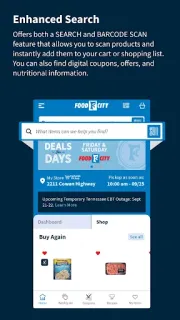
 TipsFood City
 TroubleshootingNotes
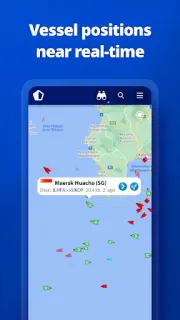
 CompareMarineTraffic
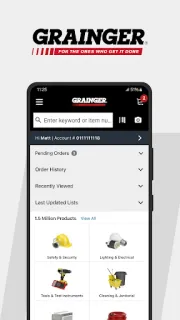
 Best picksW.W. Grainger

 TipsStyleSeat