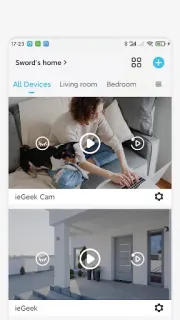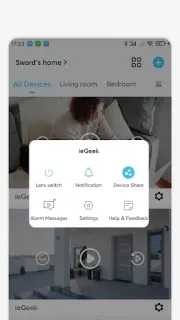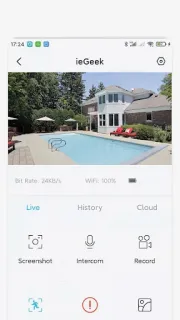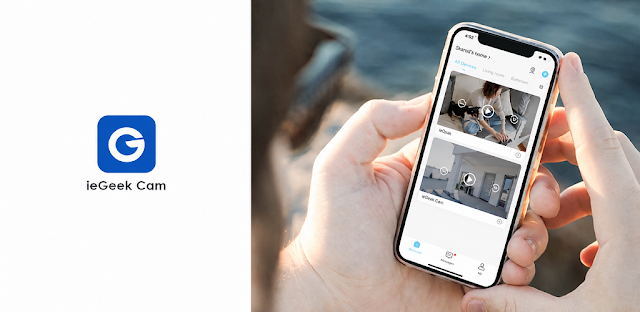
A motion notification arrives while I’m sorting dinner and trying to keep the family calendar straight. I need to know whether to stop what I’m doing or leave it for later. ieGeek Cam’s useful move is putting an alert beside a way to view the camera, so I can check the scene instead of treating every phone buzz as equally urgent. It makes most sense when the camera is watching a place where movement deserves attention, such as an entryway or a work area.
The app is described as a companion surveillance system for ieGeek cameras. Its listed functions include live video, sharing a video image, checking playback, time and message reminders, and setting smart detection zones. Those zones are the feature I’d look at first for keeping alerts relevant: focus detection on the part of the view that matters, rather than a busy area where routine movement may distract you. When a motion alert arrives, live viewing can help you assess what is happening; playback gives you a way to review recorded imagery later.
The camera is essential: this is not a standalone phone security camera. Push alerts also need notification access, and the app’s usefulness depends on a working connection between your phone and camera. Check Android’s notification settings if alerts are quiet or delayed, and allow only the permissions you’re comfortable with. The app is free to install and offers in-app purchases, so review the Google Play listing for purchase details before relying on a feature that may involve a charge. A notification is a prompt to check, not proof that every movement will be captured or sent instantly.
I’d consider ieGeek Cam if I already use a compatible camera and want a phone view, motion messages, and playback in one place. It may suit a smart home setup, but it is not a reason to buy a camera without checking compatibility and the camera’s own requirements first. Skip it if you want alerts without a compatible camera, or if frequent motion messages would add more noise than reassurance. If that fits your setup, the Google Play button just below is the place to check the app listing before installing.