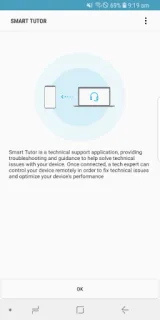
A tablet refuses to show the display option I expected, and I’m already juggling dinner plans and a family calendar. Smart Tutor is useful when tapping through menus alone stops helping: it can put a Samsung support expert in a position to diagnose the device remotely and advise on its functions. The first hurdle is not a technical trick, but arranging the session, so this suits a problem you can explain to Samsung support rather than a quick self-serve fix.
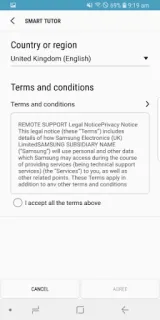
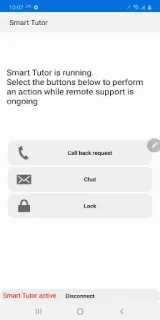
The app is for Samsung Android phones and tablets. Its listed support areas include questions about menus and features, guidance on new features, display settings or errors, software upgrade and app-update questions, and device-status diagnosis. To begin, install Smart Tutor from Google Play, call the Samsung contact center, agree to the terms, then enter the six-digit connection code supplied by the support expert. A connection uses mobile data or Wi-Fi; once connected, the expert can diagnose the device. Tap Disconnect to end the session.
That sequence adds friction: you need to make the support call, be able to receive and enter a code, and have a usable network connection. The contact-center number varies by country, so the app is not a way to skip contacting Samsung. The description says special protections restrict access to private-information apps such as Gallery, Messages and email. I’d still stay present during a session and use Disconnect when it is over. If you are comparing this with a laptop support tool or a home security camera app, note that Smart Tutor is specifically for Samsung mobile-device help.
Install it if you own a supported Samsung phone or tablet and want guided help with device settings, features or status. Skip it if you want an instant answer without a support call, or need remote help for another brand. It may be handy to have available before a confusing display issue turns into a long menu hunt, but the first step is a conversation with Samsung support. Check the Google Play button just below to open the app listing.