Gmail this week: which inbox are you replying from?
Issue 22 · Nov 9–15, 2026. This week’s Gmail notes emphasize chat, spaces and calls beside email. I recommend updating, then checking your sending account. Next comes my short guide to finding buried replies and checking the From field.
Next: account checks, quieter alerts, better searches
StartWhat changed this week
These are the three changes in Gmail that stand out in the developer's update notes and on its Google Play listing this week.
- 01Calls and spaces, not a newsletter cleanup
The update notes put chat, spaces and voice or video calls alongside email. I see the appeal for business email: a buried conversation can move into a group discussion or video conferencing. My first priority remains finding the message in the right account.
- 02Separate accounts deserve separate checks
The listing highlights support for accounts from different email providers. I value that when family messages and work newsletters share a phone. Switching inboxes helps establish context, but I still check the From field before replying; an account and a send-as address are different things.
- 03Search first; reduce newsletter noise next
Keyword search and a place to unsubscribe from unwanted senders are the listing features closest to my daily problem. I would find the missing reply first, then tackle repeat distractions. For project management messages, searching by sender and subject gives me a more deliberate starting point.
My verdict, the full review and the link to the official Google Play listing are on this issue's Gmail page.
Our take on this build
Check one settingI would update, then check the sending address before replying to buried mail.
For inboxes where newsletters outrun replies
A school message between shopping newsletters is the sort of inbox moment that shapes my reading of Gmail. I want to locate the reply without treating every unread message as urgent. Search and account switching matter more to me here than bringing another conversation into a space.
For someone keeping business email beside family mail, I see more value in the collaboration tools highlighted this week. A work thread can lead to a call or a shared discussion. I would still open the relevant account first, so the surrounding newsletters and personal messages stop competing for attention.
Check Notifications and the draft’s From field
I would open the menu, tap Settings, choose the account, then tap Notifications. Each account deserves its own decision: All, High priority only or None, where available. High priority only can reduce interruptions, but I would still search directly for an expected school reply.
Before sending, I would tap Compose and inspect the From field, expanding the sender details if needed. If several sending addresses are available, I would select the intended one there. Switching accounts through the profile picture is a separate action, not a substitute for this draft check.
Good
- Search helps surface mail beneath newsletters
- Multiple accounts stay within reach
- Calls and spaces can keep work discussions together
Watch for
- Combined inboxes can blur account context
- Send-as addresses need a draft-level check
- Gemini features have plan and connection requirements
Also in this issue
Gmail is one of 14 apps in Issue 22. Next up in this issue:
Tips
- Find the reply before clearing the clutter
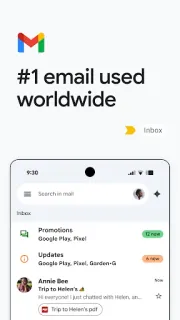
I would tap Search in mail and enter from: followed by the sender’s email address, then add a word from the subject. That is a better starting point than scrolling past newsletters. If the result is missing, I would tap the profile picture, switch to the account that received it and search again.
- Treat All inboxes as a view, not a sender
I would tap the menu and choose All inboxes for a quick overview, then use the profile picture to open one account when it is time to answer. All inboxes brings messages together; it does not create a shared sending identity. In Compose, I would check From before adding the recipient.
- Remove a repeat distraction at its source
For a newsletter I recognize but no longer want, I would open the message and tap Unsubscribe beside the sender when that control appears. I would follow the confirmation rather than just delete another issue. For suspicious mail, I would use the message’s More menu and Report spam instead of following links.
Menu names follow the developer's help pages and can differ slightly between versions and phones.
Reads about Gmail
- Tips · GmailGmail: 6 ways to keep newsletters out of your wayKeep the newsletters worth reading without giving every new issue a place at the front of Gmail.
- How-to · GmailGmail: Find the Missing Email With These 6 Search MovesFind a buried reply or attachment by combining Gmail search operators instead of scrolling.
- How-to · GmailGmail: bring unfinished emails back when you can actGive unfinished mail a return time instead of leaving it buried or marking it unread again.
- Best picks · HubspaceHubspace or a Weather App? Pick the Right Home HelperA room schedule, a rain map, or a car search? Start with the task, not the app category.
 TipsGmail
 Best picksHubspace
How we write the digest
A changed button matters most when I'm trying to finish something. I read each app's Google Play listing and update notes, then use apps in my own routine to ground my reading in everyday tasks. I separate what the app promises from what I can personally describe, without dressing a small change up as a reinvention. I say plainly whether an update is worth acting on, who might care and what to look for on the relevant screen. If leaving things alone makes more sense, I say that too.
FAQ
Is this Gmail’s official explanation of the update?
No. I write for Small Practical Wins, an independent consumer site. Gmail’s Google Play listing is the authority for official release notes; my role here is to connect those notes to newsletter clutter, multiple accounts and the address shown when you reply.
Why do I see Open when I came here to update Gmail?
Open means Google Play currently offers no newer build for your device and account. You may already have the current available build, or a staged rollout may not have reached you yet. I would check the listing again later and keep using the existing app.
Will adding another account give me its send-as addresses too?
I would treat adding an account and configuring a send-as address as separate tasks. For Gmail accounts, send-as addresses are managed in Gmail on a computer under Settings, See all settings, Accounts and Import, Send mail as. On Android, I would inspect the draft’s From choices before relying on a particular address.